
Plan Selection
Navigate to 120water.teamsolve.com
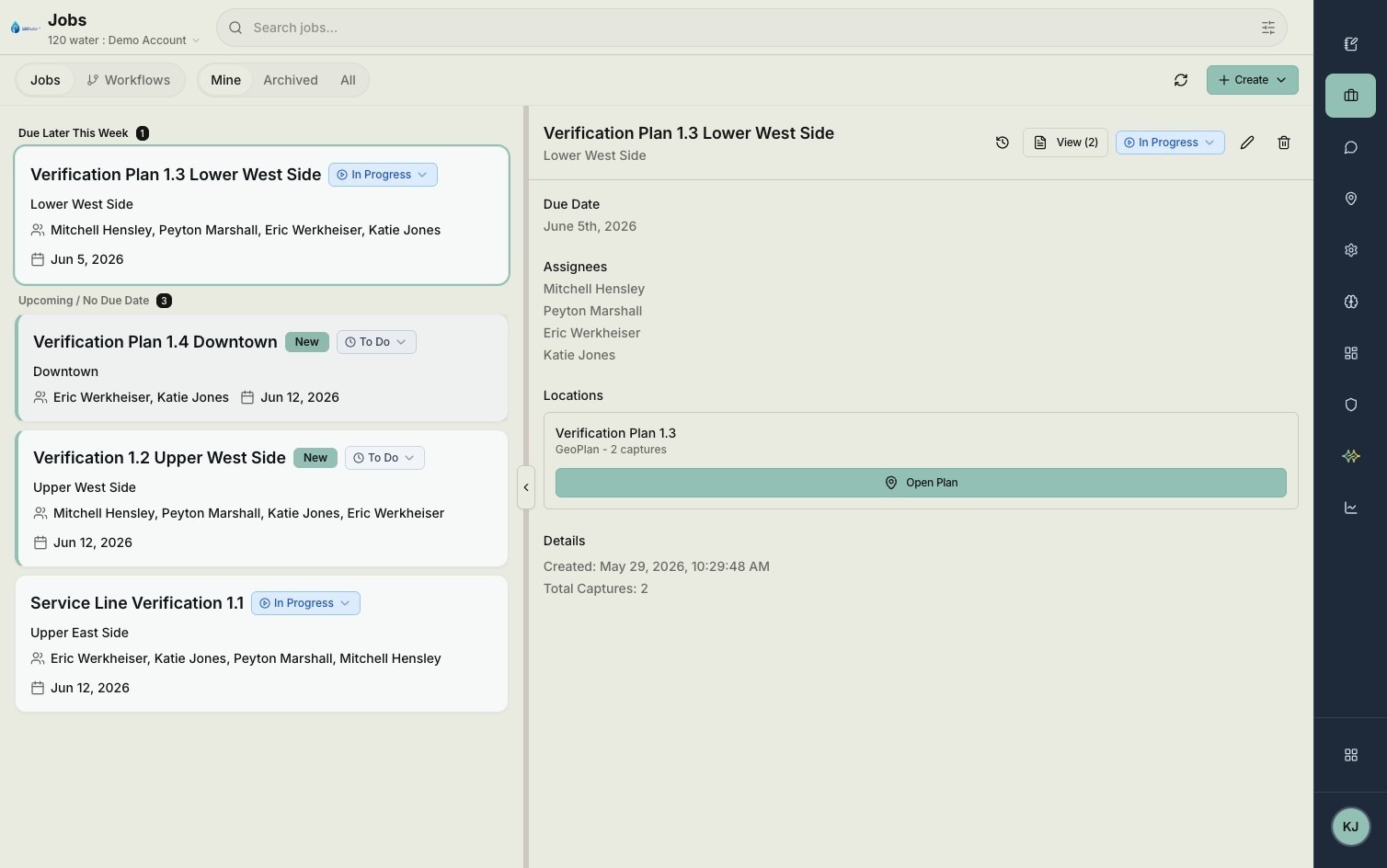
Select the job you'd like to create a route for.
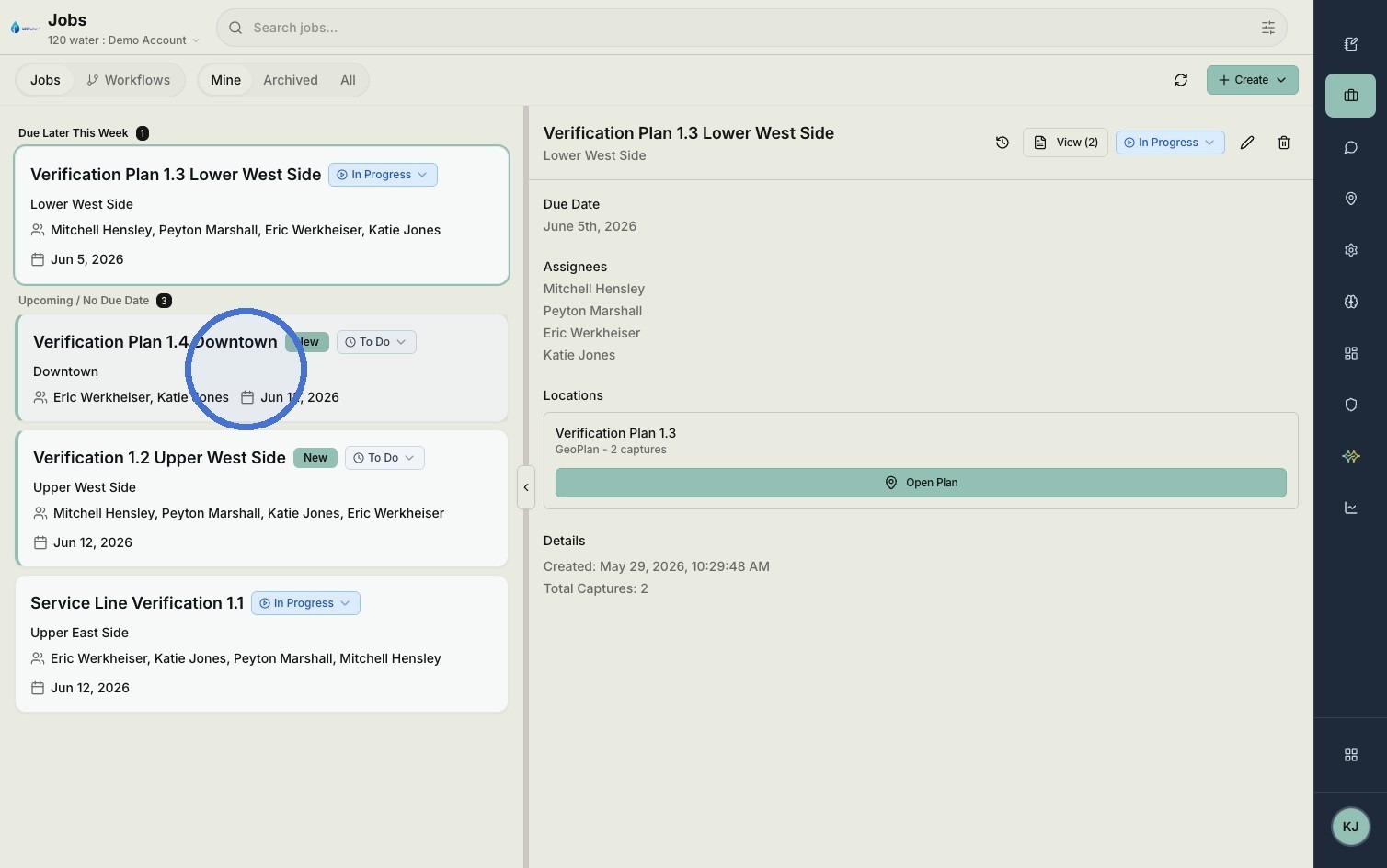
Click 'Open Plan' to view map
Route Configuration
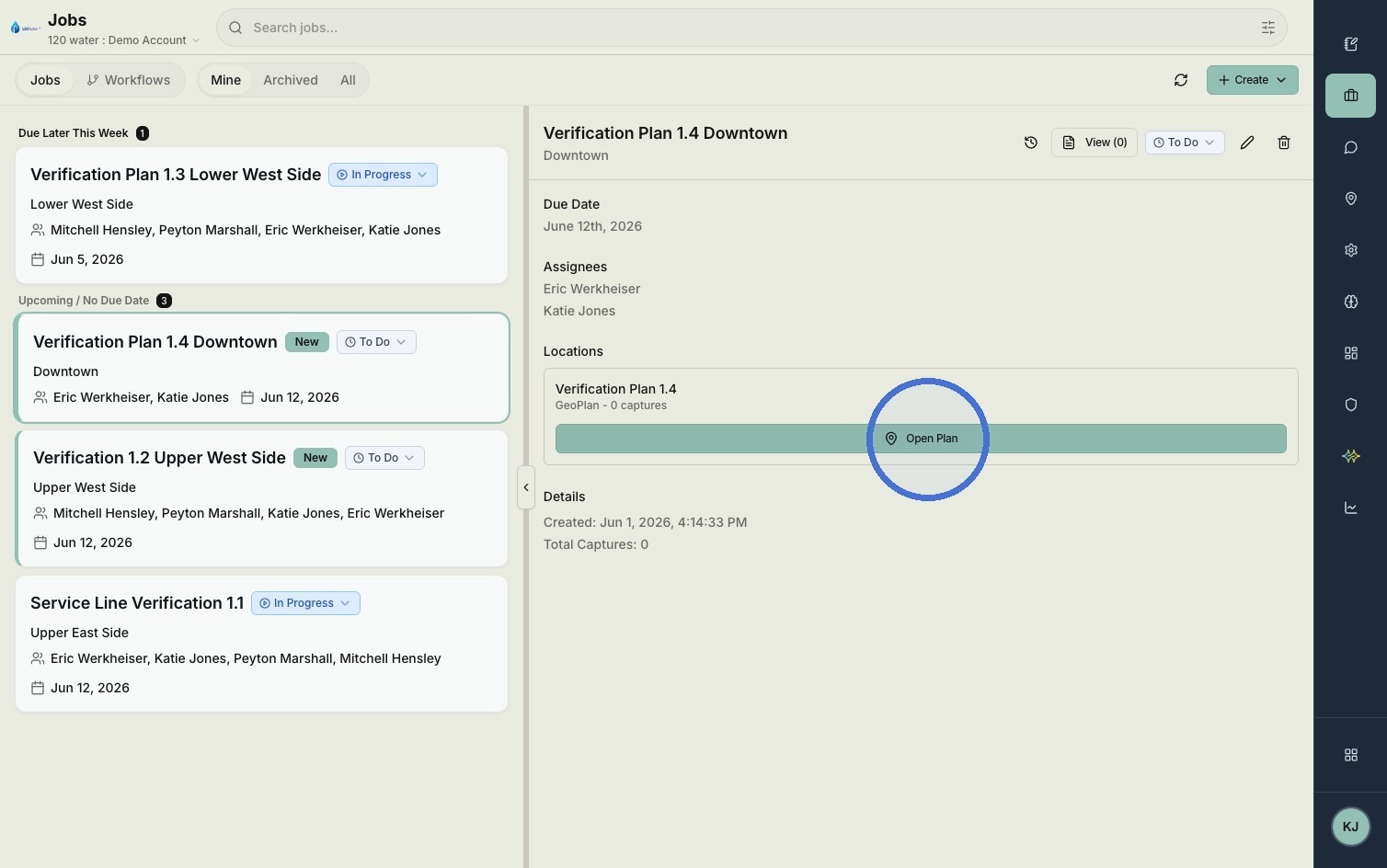
Click "Route"
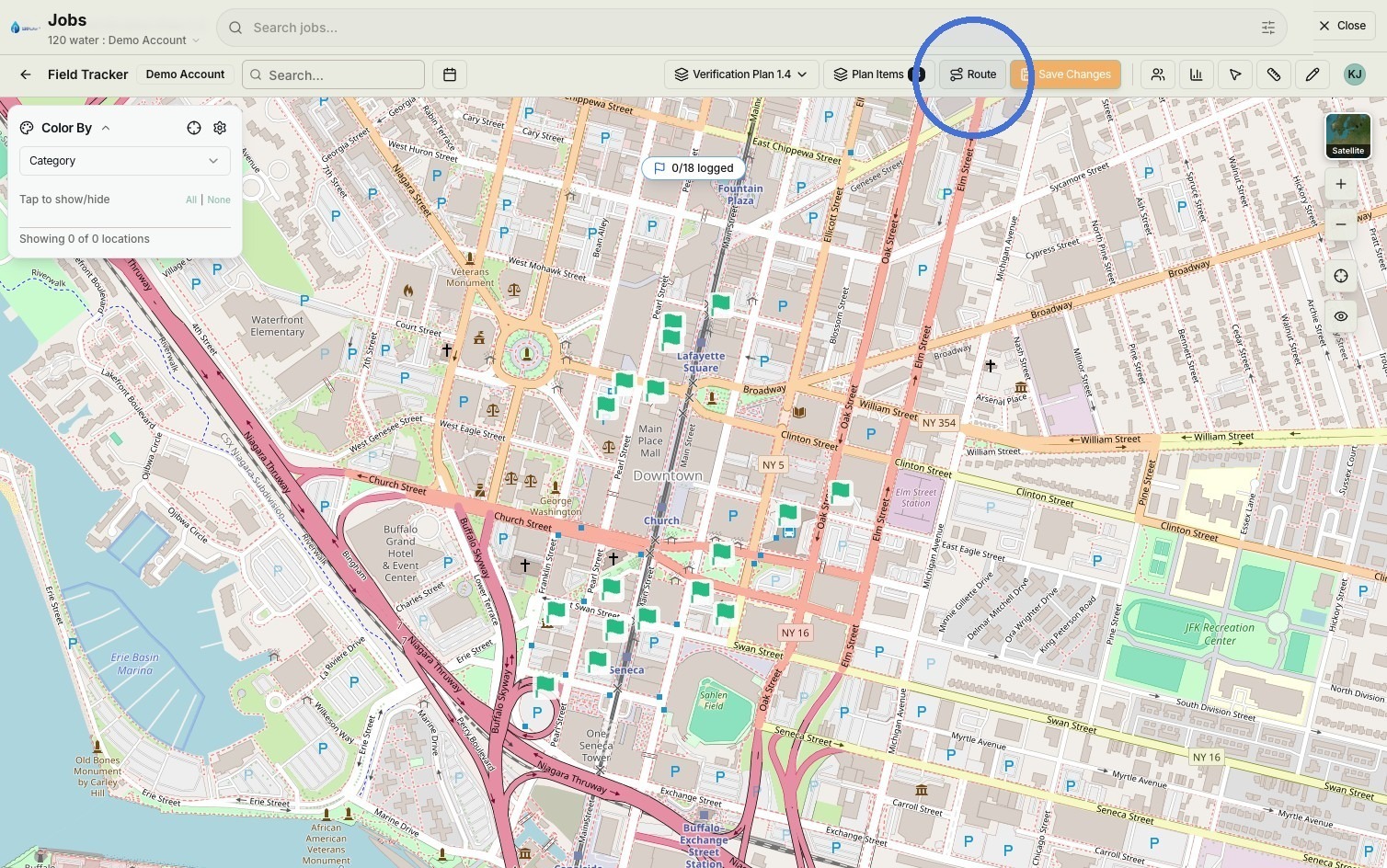
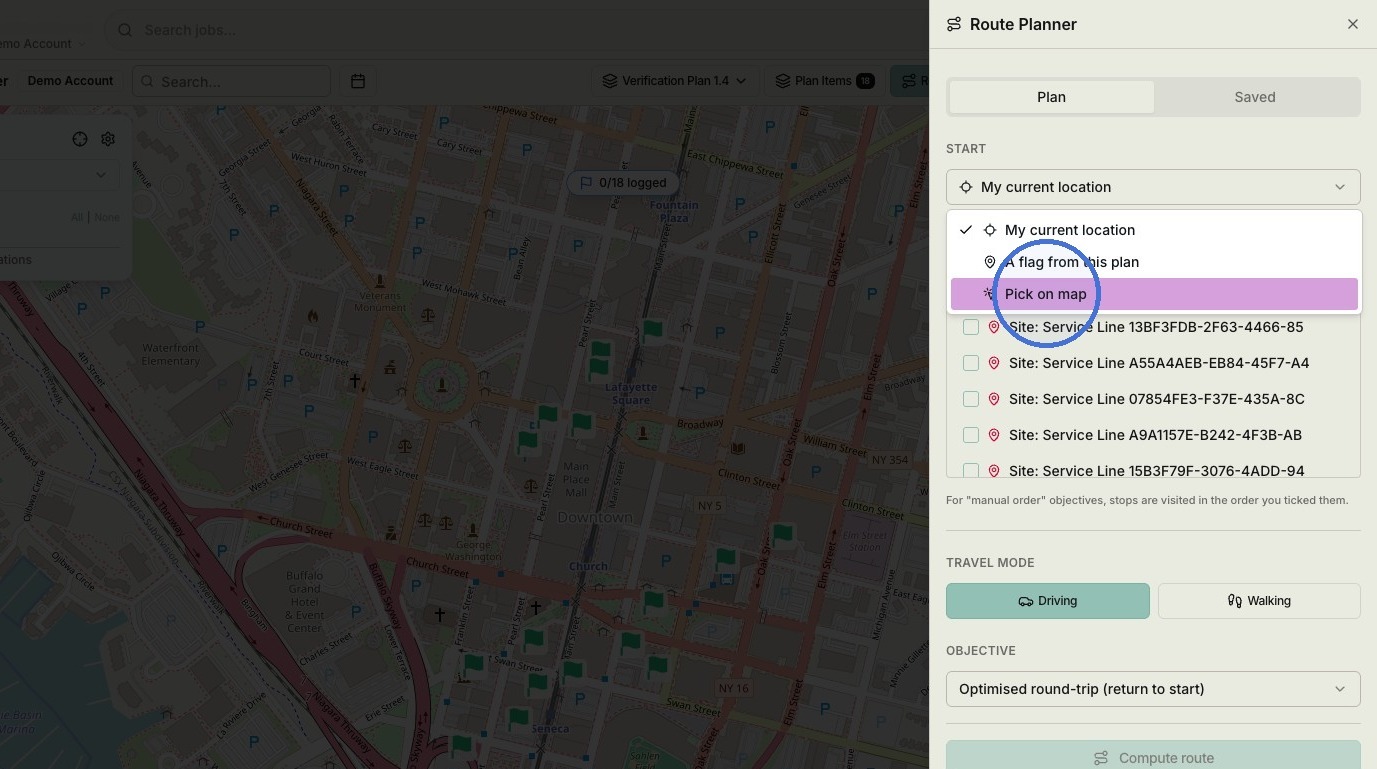
Select "Pick on map" from the dropdown.
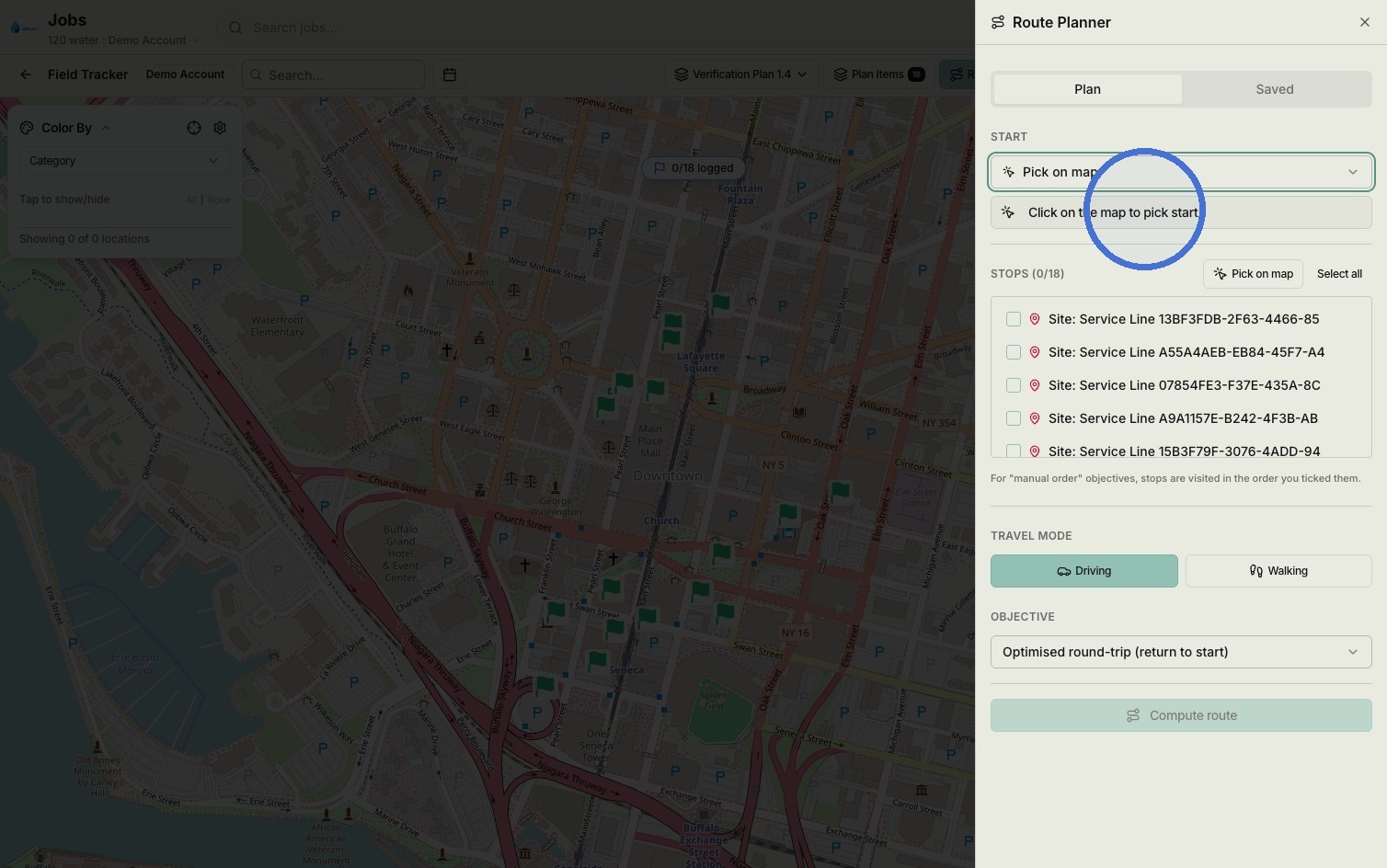
Click "Click on the map to pick start"
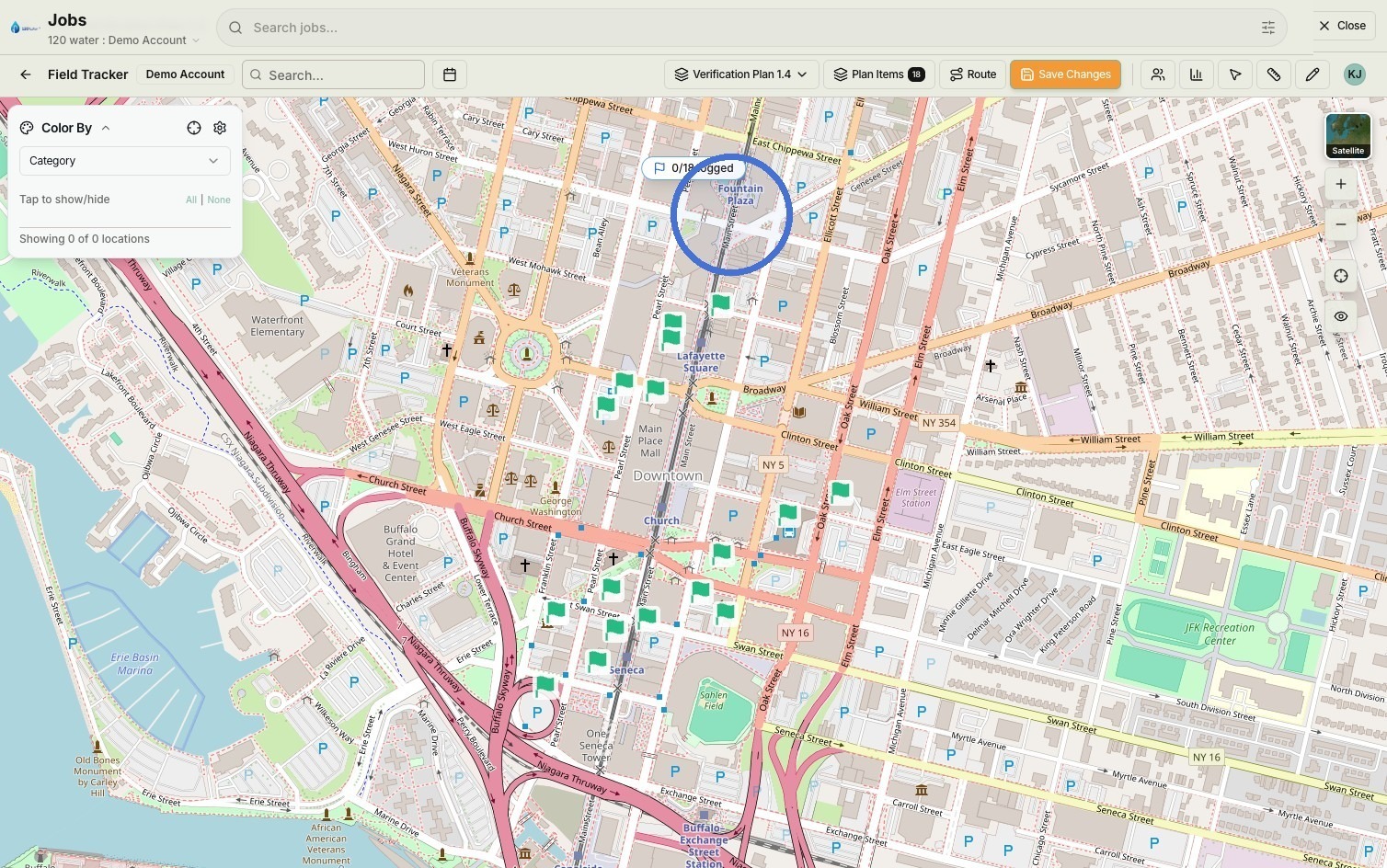
Click where you would like to start your route from.
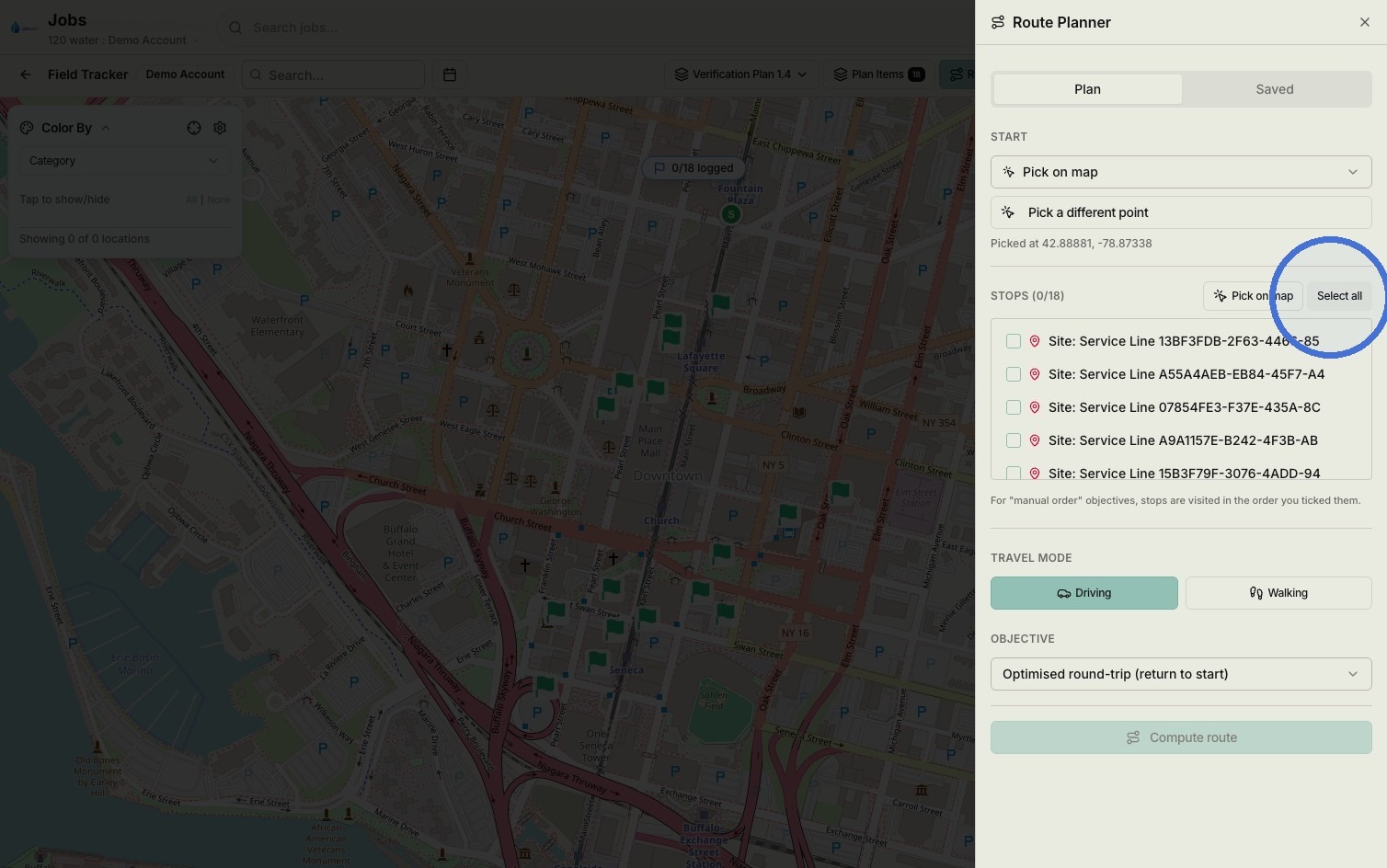
Click "Select all" to select all of the verification locations.
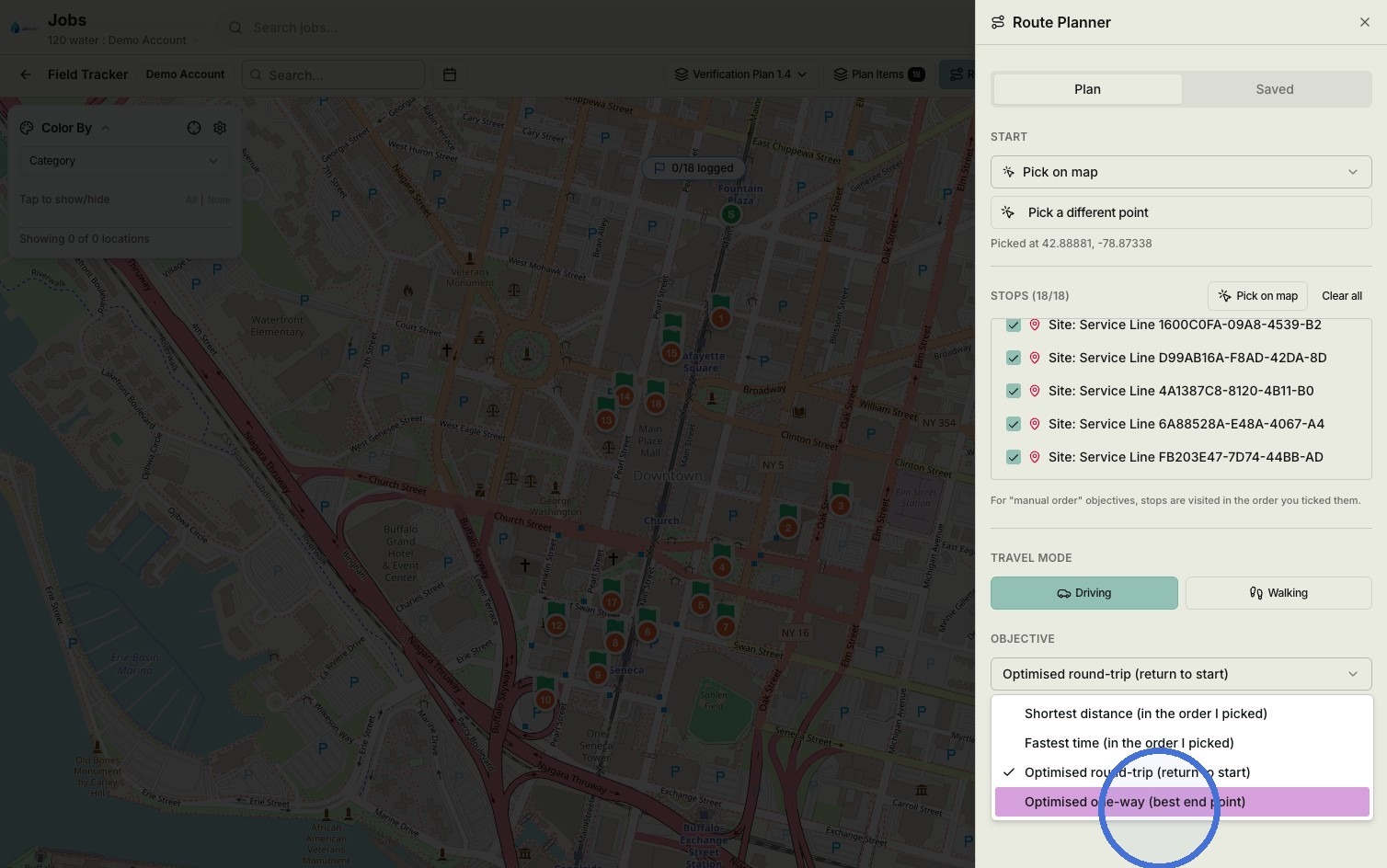
Select which type of route you'd like to generate from the dropdown.
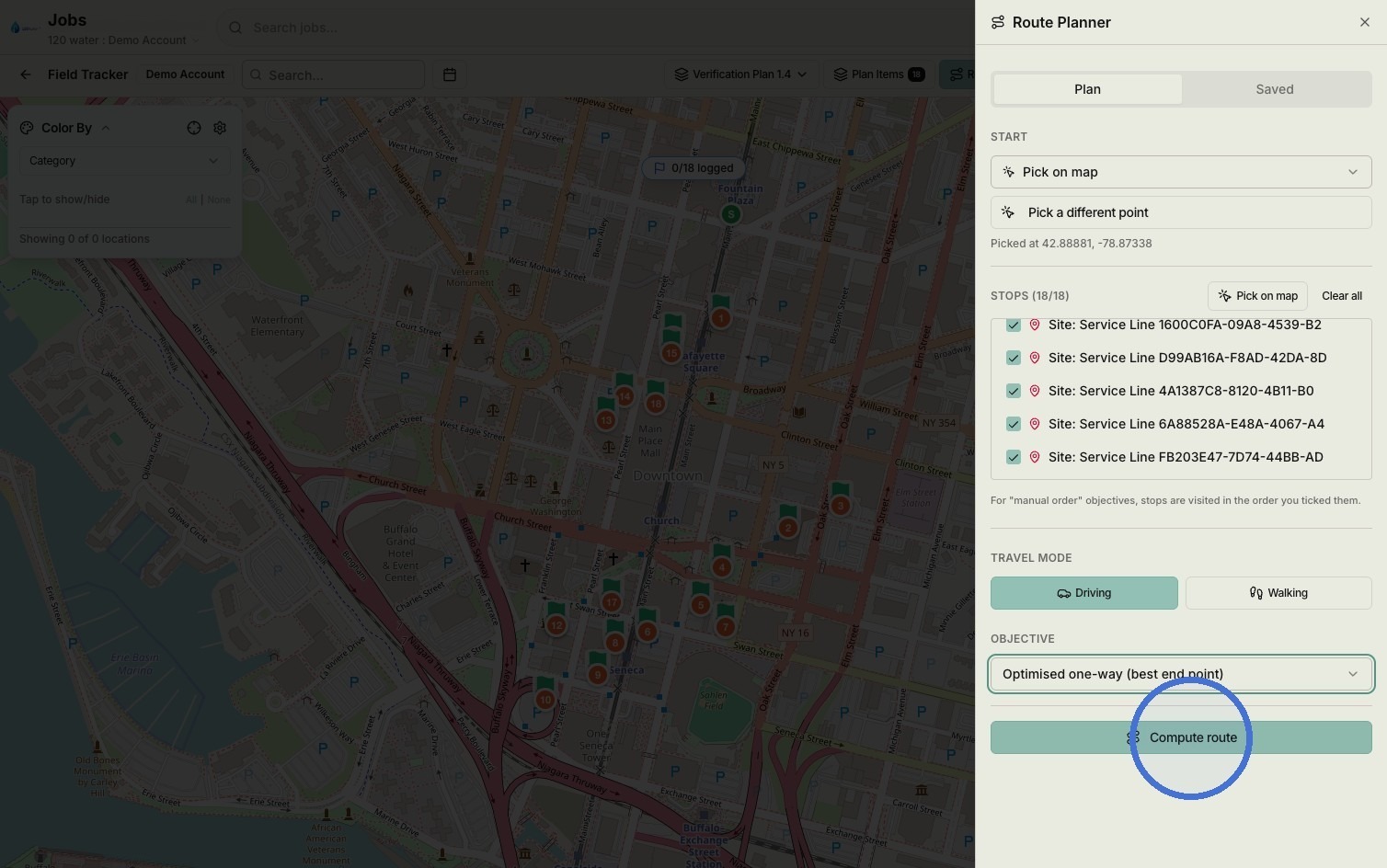
Click 'Compute route' to generate plan
Finalization and Export
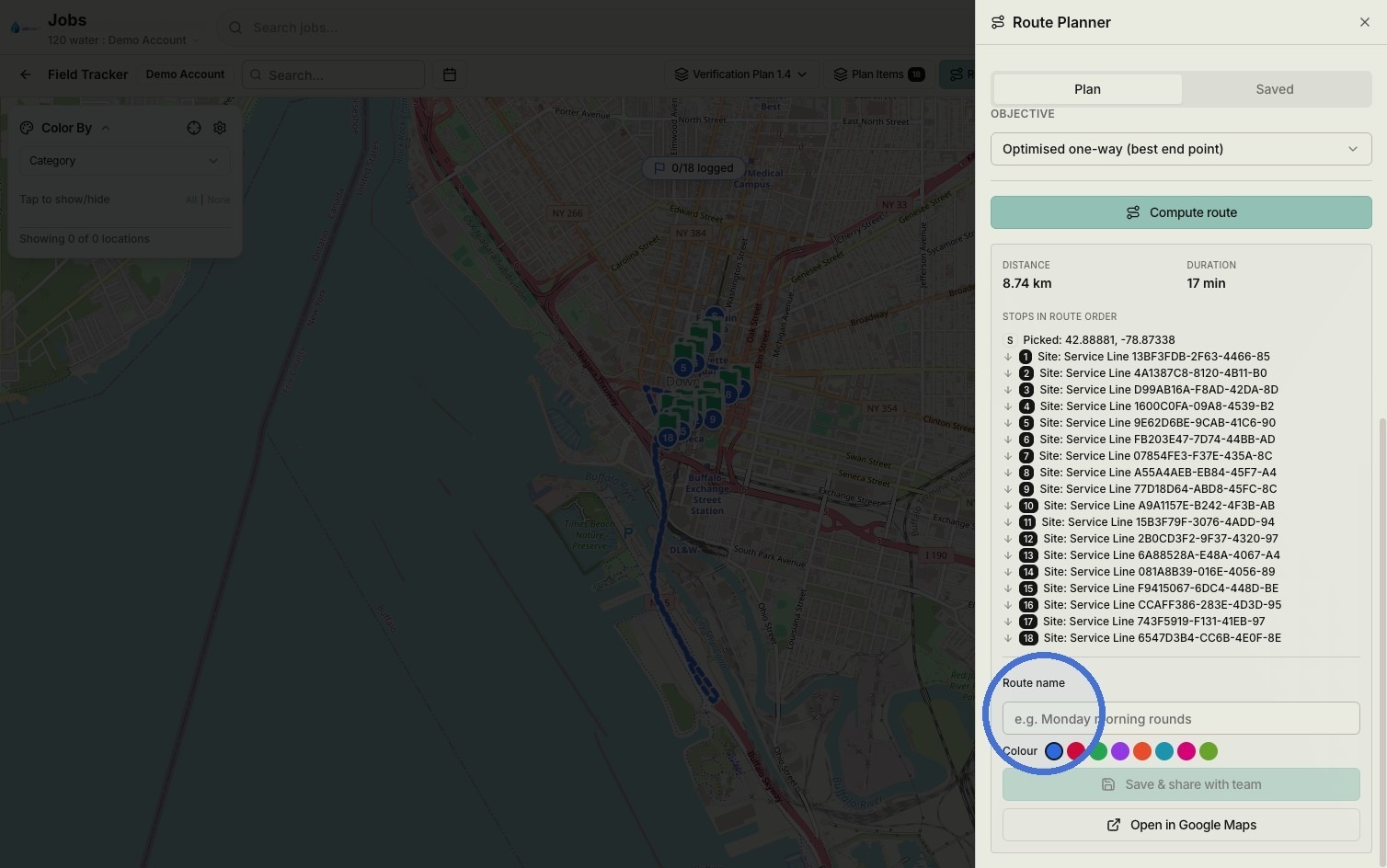
Click the Route name field and name the route.
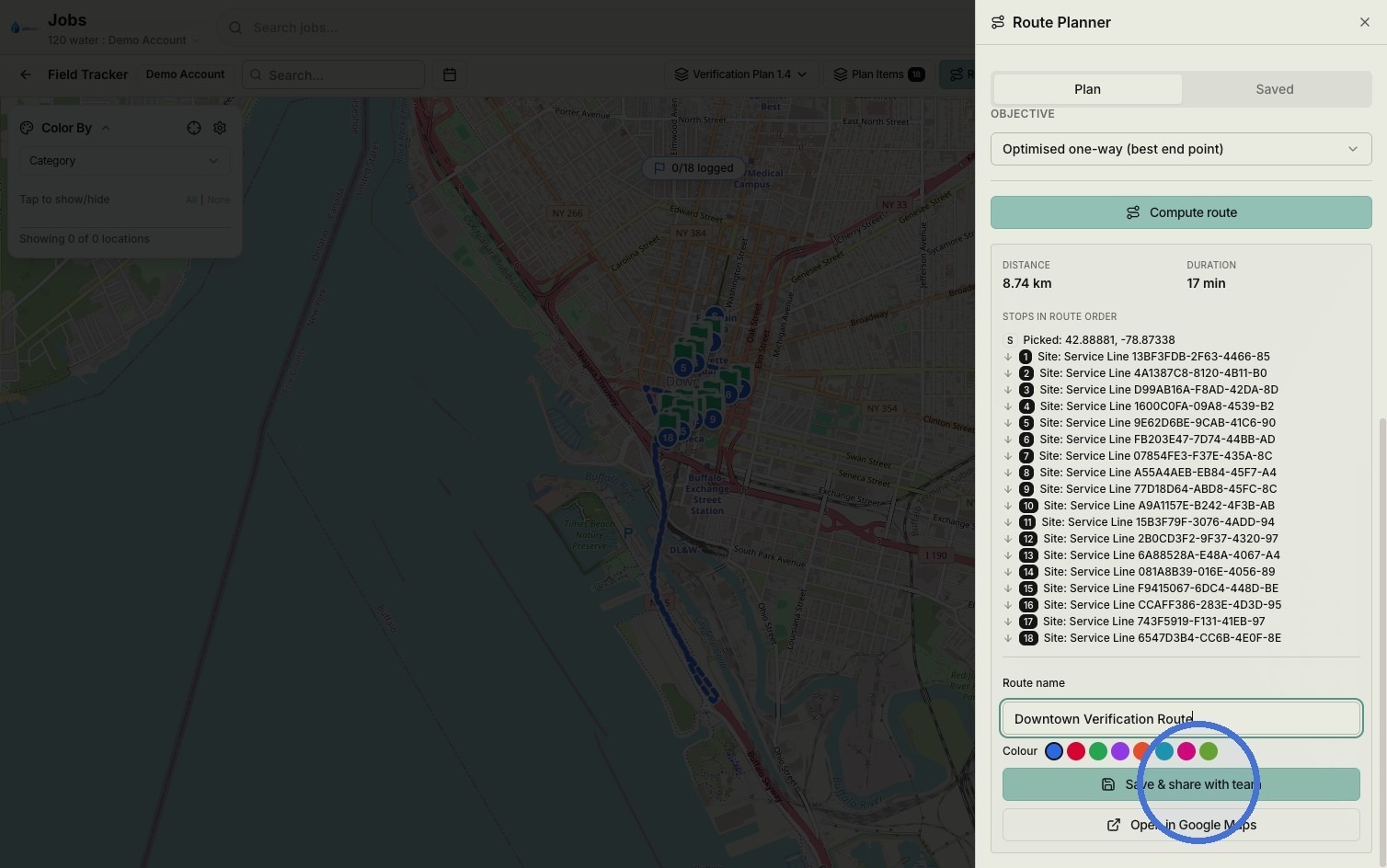
Click 'Save & share with team' to store route
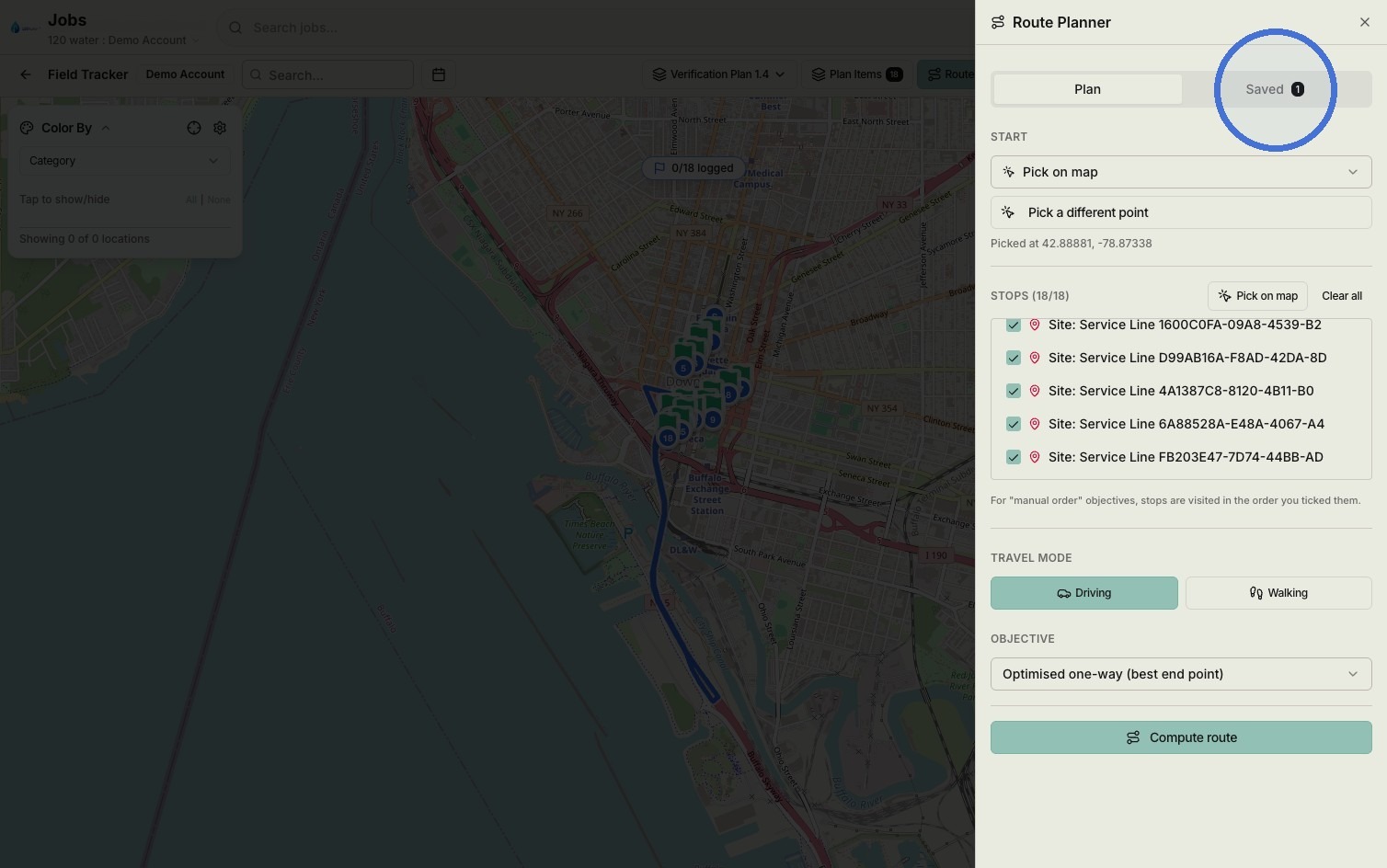
Select 'Saved' tab
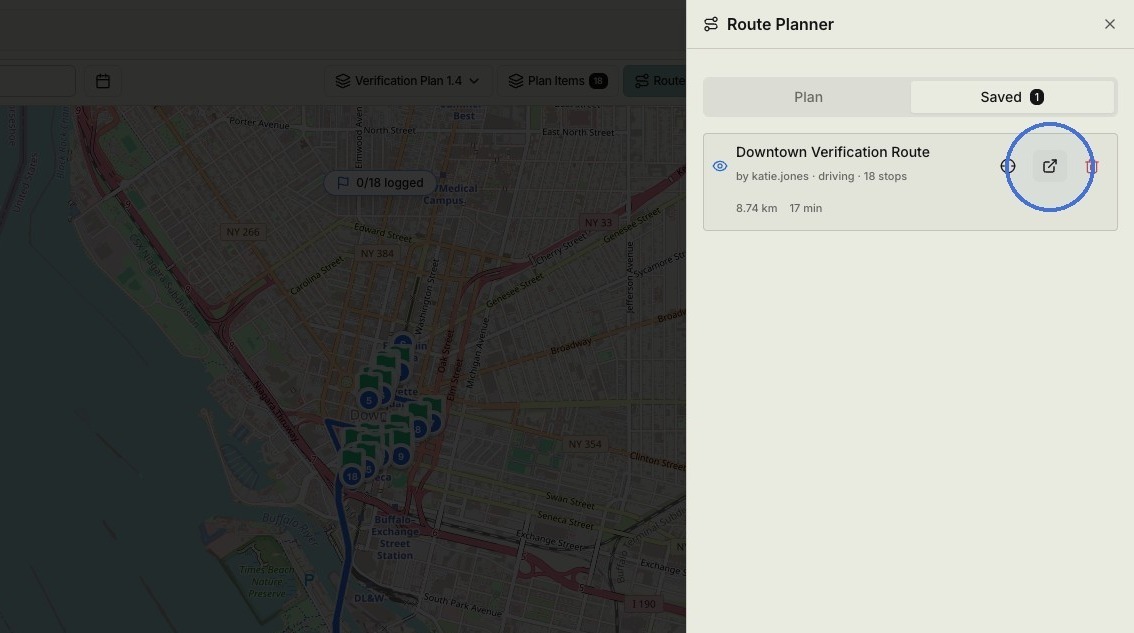
Click the icon below to open your route in Google Maps.
View your route in Google Maps.
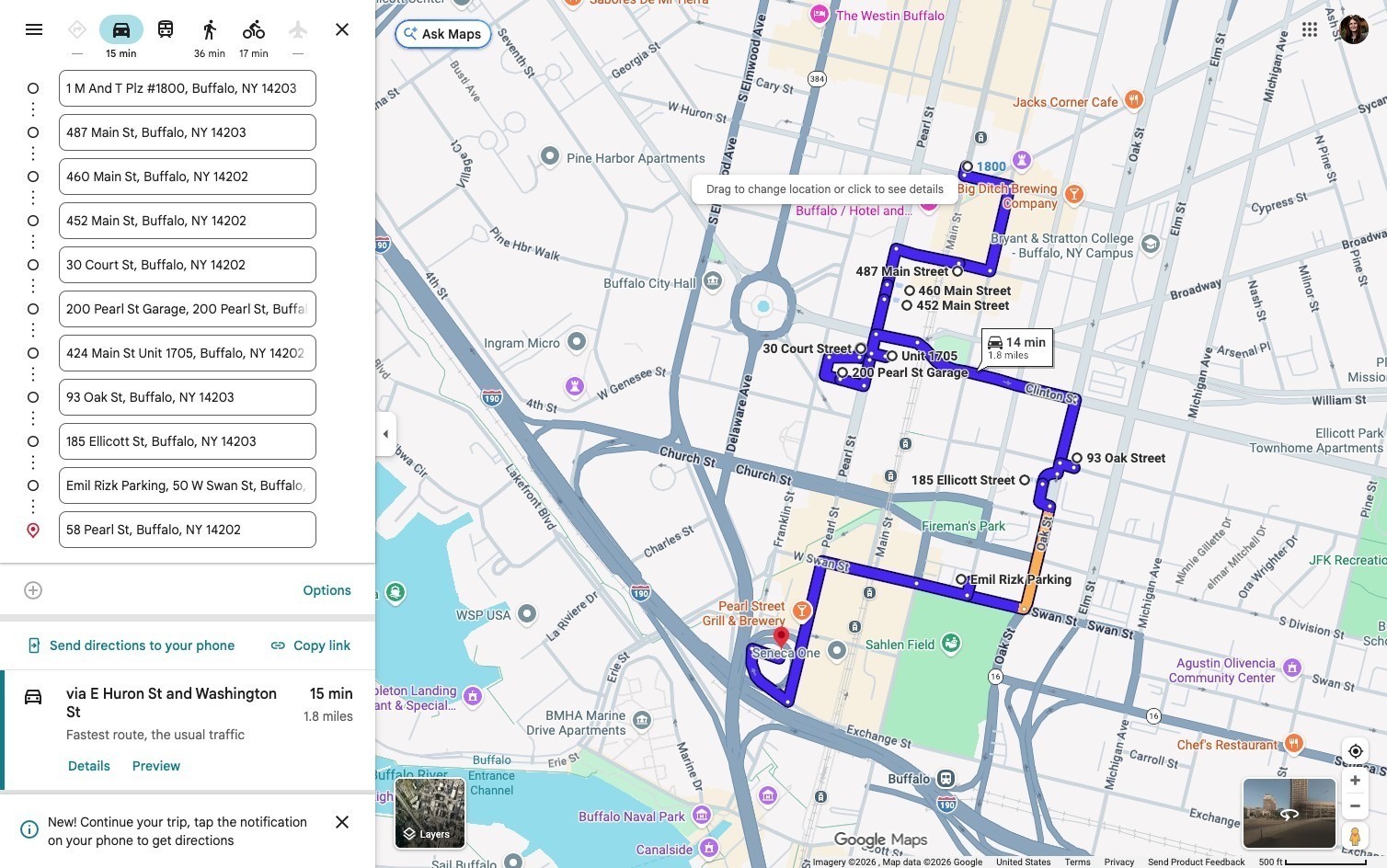
TIP: Keep in mind that only 50 assets can be added to a route at once.